< Back to list
2K Pan-Tilt Outdoor Wi-Fi Security Camera - Events & Timeline
Events & Timeline
To avoid nonstop notifications and overwhelming the Events page, only the motion events that create a push notification can be seen in the Events page. You can see all the device recordings by going to the channel's Timeline.
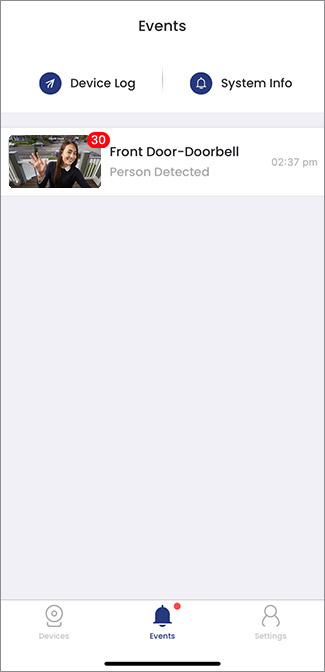
To view the Timeline:
- Open the Lorex Home app.
- Tap the video doorbell to go to Live View.
- Tap on Timeline to reveal all events on the timeline bar.
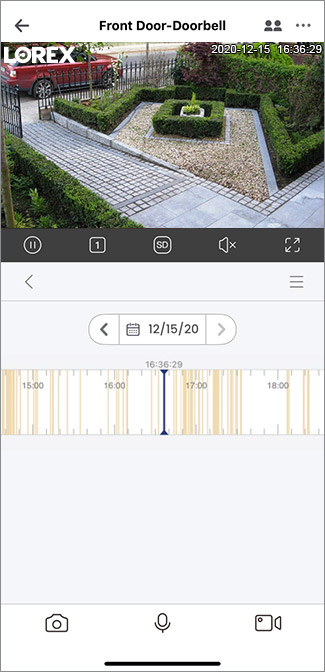
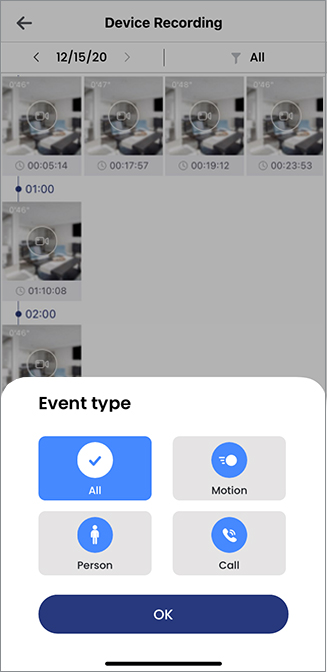
- Tap the three lines on the top right of the timeline to filter through the event types.
How do I enable and view Person Detection motion events
Person Detection motion events can only be viewed from the Timeline. Note: Notifications must be enabled.
To enable only Person detection:
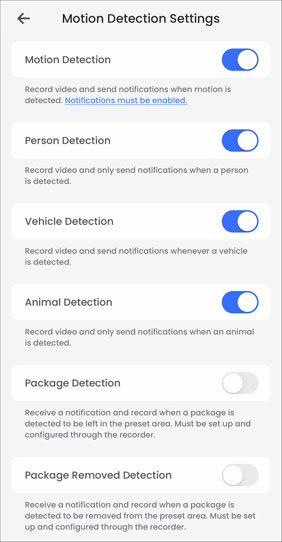
-
Launch the Lorex Home app.
-
Tap
 icon above the channel thumbnail on the Devices screen.
 -
Tap Motion Detection Settings.
-
Tap
 icon to enable Person Detection. Tap again to disable Motion/Animal/Vehicle Detection.
To view all Person detection recordings:
- From the device Live View, tap Timeline to reveal all events on the timeline bar.
- Tap the three lines on the top right of the timeline.
- Tap the
 , and then tap Person.
 - Tap OK.